Property filters
The Properties navigation section turns a small set of frontmatter keys into browsable facets. It is intentionally empty until you choose which properties matter, so a large vault does not become a wall of metadata.
Choose visible properties
Section titled “Choose visible properties”Right-click the Properties header and choose Choose visible properties. Search the vault-wide list, enable the keys you want, and select Done. Newly enabled keys open immediately to show the values found in the current card source.
The documentation vault includes a small workflow property with the values gather, organize, and reframe, which makes a useful first example after Getting started.
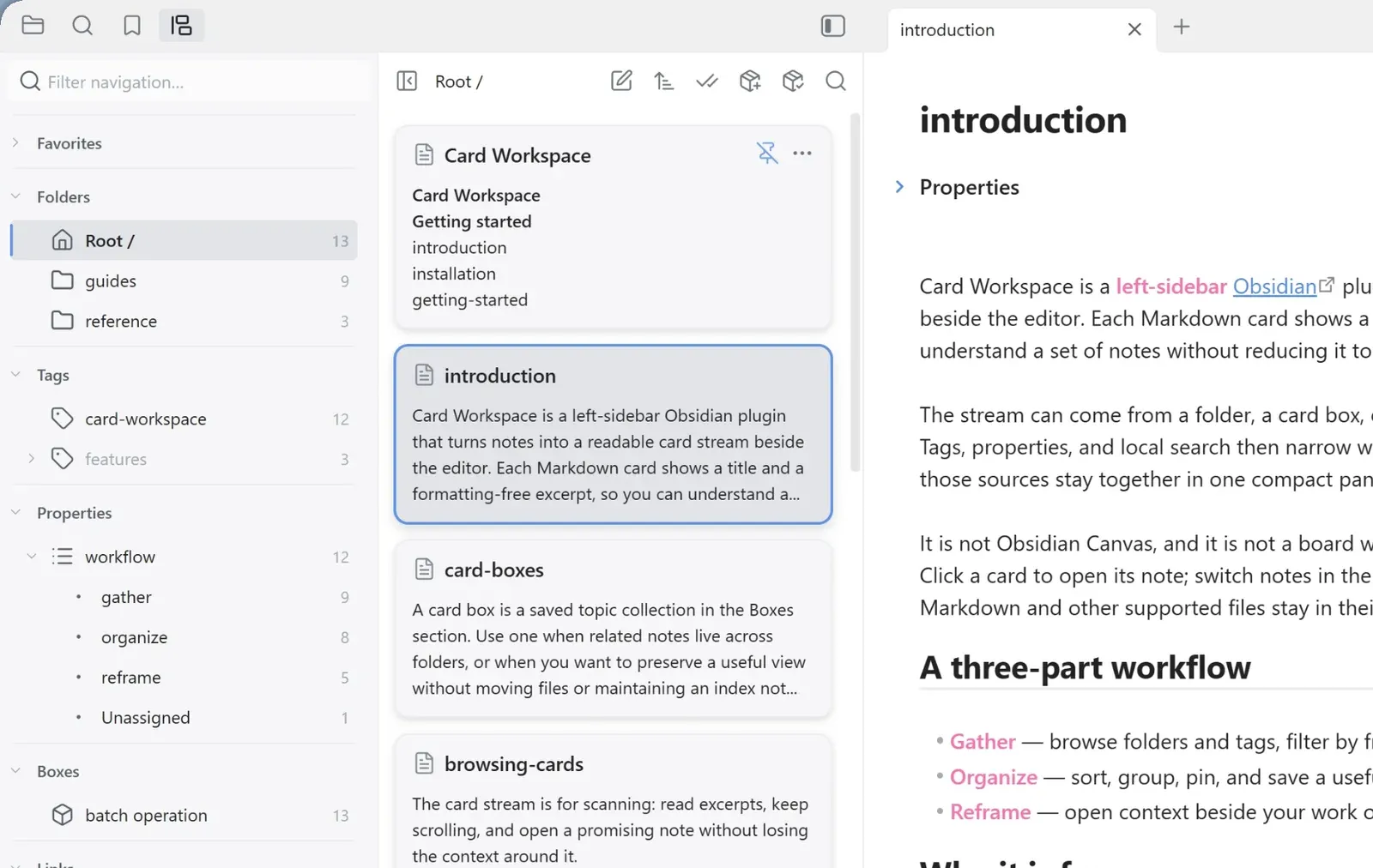
Filter by values
Section titled “Filter by values”Click a value to make it the only active property filter. Click it again when it is the sole active value to clear the filter. Ctrl-click on Windows/Linux, Cmd-click on macOS, or press Space to add or remove values without replacing the rest.
- Values inside one property use OR:
workflow = gather OR organize. - Different properties use AND:
workflow = gather AND status = active. - Unassigned matches notes without a supported value for that key.
Text, finite numbers, booleans, and arrays containing those scalar values are supported. Keys come only from top-level Markdown frontmatter; nested objects are not expanded into dotted properties. Non-Markdown cards have no property values and therefore match only an active Unassigned choice.
Counts and navigation search
Section titled “Counts and navigation search”Property facets are calculated from the unfiltered source, so choosing one value does not erase its siblings. Turn on navigation counts in Settings to show how many source cards contribute to each key and value.
Filter navigation… matches both enabled property names and their displayed values. A matching value temporarily expands its property, making it useful in a longer property list.
Availability by source
Section titled “Availability by source”Property filters are available only in folder sources.
They are unavailable in card boxes and linked-note sources.
Existing folder property clauses stay dormant there, show a paused-filter hint when applicable, and resume when you return to a folder.
A card box’s membership rules can still include property clauses; those rules determine its members rather than acting as a temporary browse filter.
When you save or add a folder view to a card box, its active property clauses become part of the new rule together with the folder and tags.
Right-click the Properties header to clear all property filters. Hiding a property also removes its expansion state and any active clause for that key.